
Organize items with strings
Add and edit items to a board /Organize items with stringsConnect items with corkboard-style strings for casual, visual relationships.
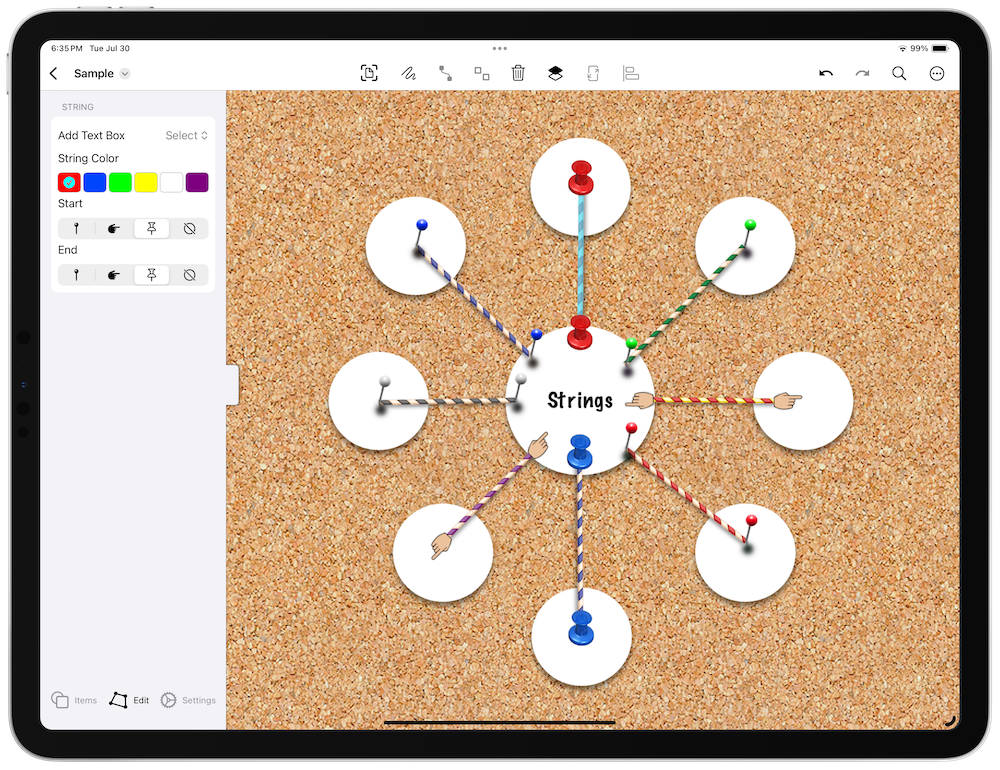
Strings create casual, corkboard-style connections between items — like pins and thread linking photos on a detective board. They’re great for mind maps, brainstorming, and showing relationships between ideas.
Strings are rendered as real textured rope using Metal, so they stay smooth and responsive even on busy boards. Each string drapes with natural physics as you move its ends, and the pins that anchor it are lit dynamically as you pan around the board.
Add Strings
From the Shelf
On iPadOS or macOS, open the shelf on the left side of the screen. On iPhone, the shelf slides up from the bottom.
- Add a String: Tap the string item in the shelf to add it to the board.
- Attach the Ends: Drag each end (pin) to an item to create a connection. Once an end is on an item, it sticks.
Connection Handles (iPad/Mac)
The fastest way to create connections is with the overlay controls and connection handles:
- Enable Connector Mode: Tap the link button in the overlay controls (top-right corner of the board). The button fills in when active.
- Set the Connection Type: Tap the type label next to the link button to toggle between “Connector” and “String”. Make sure it says “String”.
- Select an Item: Tap the item you want to connect from. Four arrow handles appear around it.
- Drag a Connection: Drag from any arrow handle toward another item. The string attaches automatically.
Connect Two Selected Items
Select two items, then tap the pin button in the toolbar. The connection type (string or connector) is determined by the setting in board settings or the overlay controls.
Edit Strings
Select a string to access its properties:
- Colors: Choose from six pin colors — red, blue, green, yellow, white, or purple.
- End Styles: Pin, pointing finger, thumbtack, or none.
- Text Boxes: Add text to the middle or either end of the string.
- Line Style: When using the “line” variant, choose solid, dashed, or dotted.
Tips
- Drag from an Existing String: Long-press the end of a string to drag out another one.
- Duplicate with the Same Style: Press
Shift-Command-Nto duplicate a string with the same style. - Automate: Use shortcuts to automate adding strings to boards.
See Overlay Controls for the fastest way to create connections.
