
Position items on a board
Move, resize, rotate, align, and arrange items on your board.
Every layout starts with a selection. Select one or more items, and you can move, resize, rotate, align, arrange, and lock them anywhere on your board.
Select Items
- One item: Click (Mac) or tap (iPad/iPhone) the item.
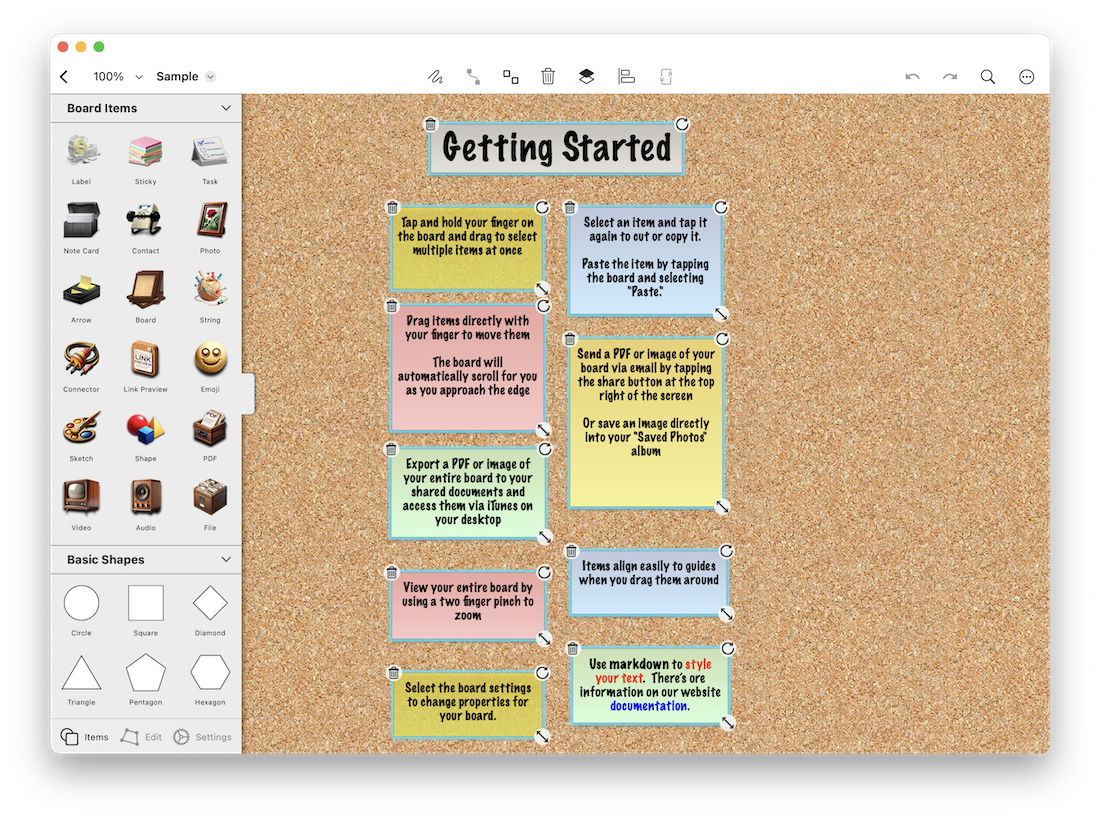
- Multiple items: Click and drag on the canvas, or tap and drag with your finger.
- Add to a selection: Hold
Commandand click additional items (Mac), or tap additional items one at a time.
Work with Selected Items
Once items are selected, you can:
| Action | What It Does |
|---|---|
| Move | Drag to reposition |
| Resize | Adjust dimensions |
| Rotate | Change orientation |
| Align | Snap to guides or other items |
| Arrange | Change layer order (front/back) |
| Lock | Prevent accidental changes |
| Group | Combine multiple items as one |
Tip: Touch and hold (iOS/iPadOS) or right-click (Mac) an item to open a context menu with more options. Selecting multiple items enables batch editing.
Fit the Board to Your Content
When a board starts to feel too large (or too small), you can quickly fit the canvas around everything on it. Tap the Fit button in the center toolbar to resize the board so all items sit inside the frame with comfortable padding. Items shift as needed so the board wraps your content.
Auto-Expand While Dragging
Corkulous can automatically grow your board as you drag items toward the right or bottom edge. This is on by default. To change it, open Board Settings → General and toggle Auto-Expand Board While Dragging.
