Add a task
Add and edit items to a board /Add a taskAdd checkbox tasks to track to-dos and mark items complete.
Tasks are checkbox items for tracking to-dos and action items. Tap the checkbox to mark a task complete.
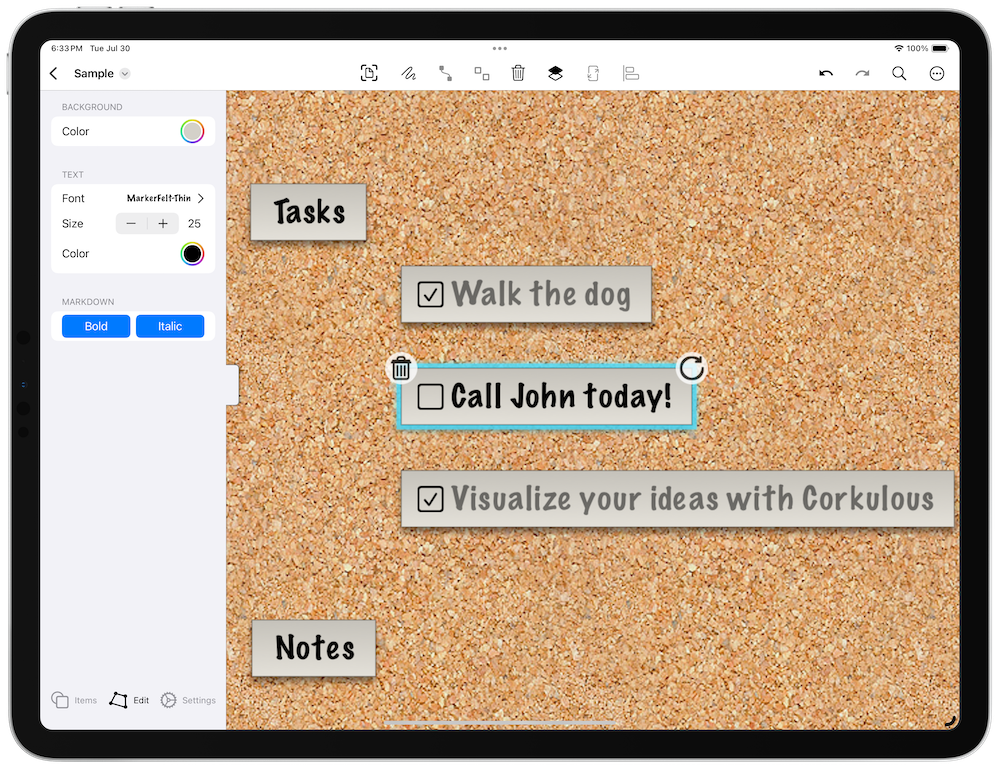
Add a Task
Open the shelf: on iPadOS and macOS it’s on the left side of the screen; on iPhone it slides up from the bottom.
- Add a Task: Tap the task item in the shelf to add it to the board.
- Edit the Task: Edit the text, then adjust fonts, sizes, and colors. You can also style text with Markdown.
- Complete a Task: Tap the checkbox to mark it complete.
Tips
- Create a Checklist: Create a checklist in any app, copy it, then paste it onto the canvas to create a series of tasks.
- Create Similar Items: Press
Shift-Command-Nto quickly create a similar item. - Connect Items: On iPad and Mac, enable connector mode (the link button in the overlay controls), select an item, then drag from the arrow handles that appear. Or select two items and tap the pin button in the toolbar. See Organize items with lines for details.
- Drag and Drop or Paste Text: Add items by dragging and dropping or pasting text. Board settings include an option that controls which items are created when you drop or paste text — use the “Ask” setting for more control. Learn more about drag and drop on iPadOS from Apple Support.
- Automate: Use shortcuts to automate adding tasks to boards.
Next > Add a note card
