
Generate a Board with AI
AI Features /Credits System /Generate a Board with AICreate complete boards from a simple description with AI-generated layout.
Type what you want — a project plan, a study guide, a research wall — and AI generates the cards, notes, labels, shapes, and connections, all laid out neatly and ready to edit. You can generate boards with either Credits mode or Provider Mode. Provider Mode needs iOS or iPadOS 26 or later on iPhone and iPad; earlier versions use Credits mode.
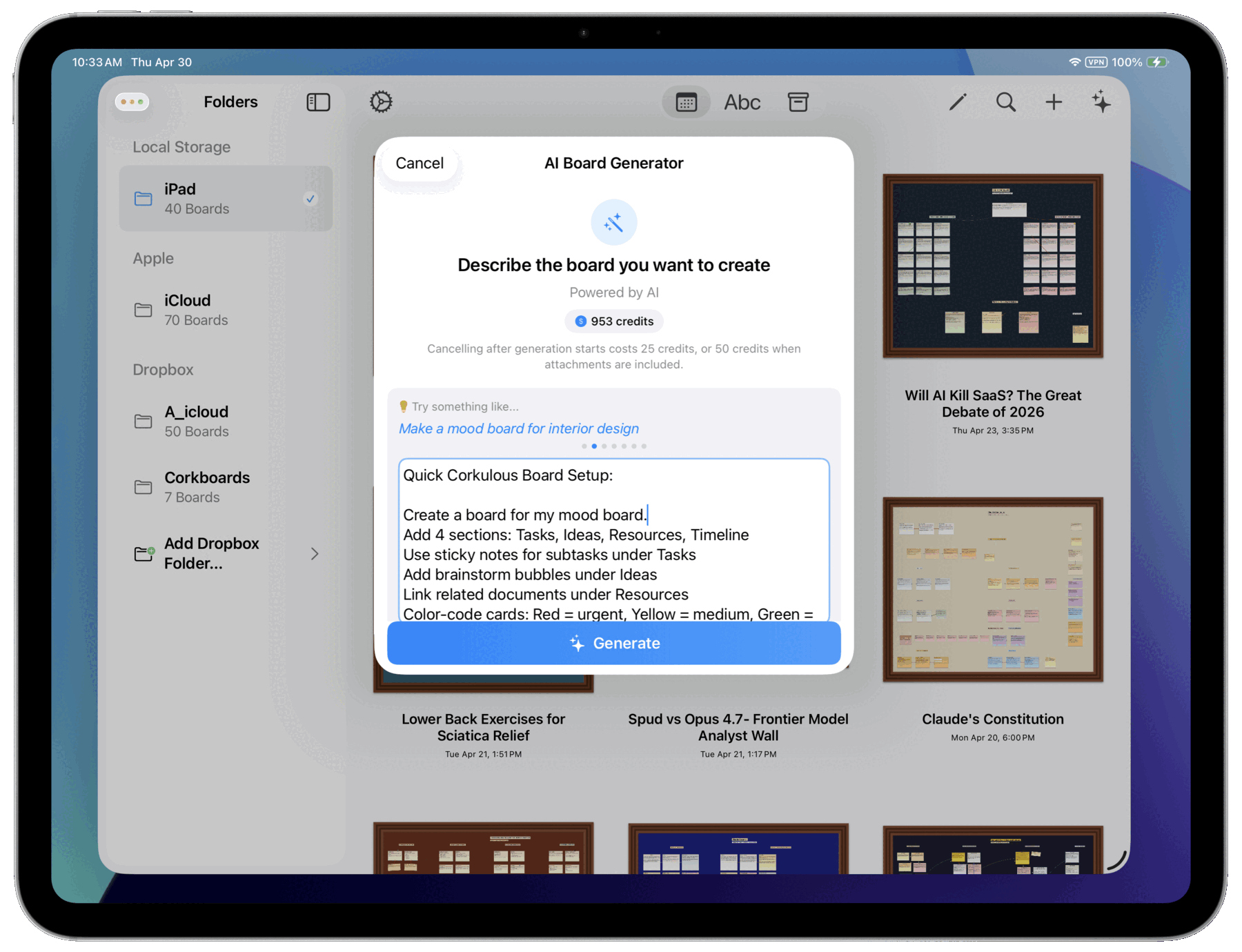
How to Generate a Board
- Tap the + Button: From the home screen, tap the plus button to create a new board.
- Choose the AI board generation option: Open the AI generator from the home screen.
- Describe Your Board: Type what you want the board to be about. Be specific!
- Tap Generate: Allow up to 30 minutes for the job to finish. Straightforward boards often finish sooner, while complex, Premium, researched, or attachment-heavy boards can take several minutes.
- Review and Edit: Your board appears ready to use. Make any adjustments you like.
Important: AI-generated boards can contain mistakes, missing details, outdated information, or layout issues. Review the result before relying on it, especially for research, planning, legal, financial, medical, or other high-stakes work.
What AI Creates
Based on your description, AI can include:
- Cards with titles and detailed content
- Sticky notes for quick points
- Labels and headers for organization
- Shapes for diagrams and flowcharts
- Connectors linking related items
- Tasks and checklists
- Generated media like images, narration audio, and music (when requested and available in your mode/settings)
Provider Mode Orchestration
Provider Mode can use workers and orchestration to build richer boards in one run. Corkulous can plan the board, run research, generate images, create narration or music, and assemble the final board together.
Use the Research and Media Agents toggle in the generator when you want that larger workflow. Worker counts, parallelism, and timeouts are controlled in the Workers tab of AI Settings.
Regular vs Premium
Regular and Premium can both use the same prompt, but they often produce different kinds of boards.
Regular
Regular is faster and usually best for:
- straightforward planning boards
- lighter research boards
- attachment summaries
- first drafts you plan to refine
Premium
Premium is better when the board needs more judgment, comparison, and structure. It is usually the better fit when you want the board to:
- compare ambiguous or competing claims
- separate evidence from speculation
- organize a large attachment or research topic
- feel more like an analyst brief than a quick summary
If you like your prompt but want a sharper, deeper result, trying the same prompt on Premium can work better than rewriting the whole request.
Premium can cost more than Regular because it uses a separately configured provider route. Corkulous shows the available option and required balance before the request starts. If Premium is not available, the request is not silently rerouted to Regular.
Credits Mode: Estimated Hold vs Final Charge
In Credits mode, Corkulous may reserve enough credits for the planned board run before generation starts. This is a temporary hold, not the final settled charge.
After the provider finishes, Corkulous settles the actual completed work and automatically returns any unused credits from the hold. For supported text models, the model portion of the charge is based on actual provider cost when usable provider usage data is available.
This is most noticeable when:
- the board request is complex
- web research is enabled
- your workflow includes PDFs or text documents
- the model is allowed to produce a lot of output
That means it is normal for the hold you see before generation to be higher than the final charge after the board completes.
Source Material and Attachments
When your board-generation workflow includes PDFs or text documents, Corkulous can use them as source material for the board.
To get the best results:
- tell Corkulous whether to summarize, extract, compare, or reorganize the material
- mention the sections or themes that matter most
- ask for a specific board shape such as overview, timeline, action plan, or comparison board
If a document is invalid, encrypted, or unsupported, Corkulous may stop the request before generation begins instead of charging for a failed run.
If Generation Fails
AI providers can time out, return errors, or produce output Corkulous cannot safely turn into a board. When supported, Corkulous may offer a retry using the same prompt and attachments. Review any cost estimate or temporary hold before starting the retry.
In Credits mode, Corkulous is designed to charge for completed work. If the request stops before provider work completes, Corkulous does not treat it as a successful generation. If Corkulous placed a temporary hold, unused held credits are returned automatically.
Web-Enhanced AI for Current Topics
AI models have a knowledge cutoff date and do not know about recent events. Enable “Web-Enhanced AI” in settings to let AI search the internet for up-to-date information.
Use Web-Enhanced AI when your board topic involves:
- Current news or events
- Recent statistics or data
- Topics from the past few months
- Anything that changes frequently
Cost note: Web searches typically add 3-5 credits per search on top of the base generation cost, depending on the tool and provider used.
Tips
- Be Specific: “Project timeline for launching a mobile app in Q2” works better than “project plan”.
- Include Context: Mention the purpose, audience, or style you want.
- Try Examples: Tap the example prompts for inspiration.
- Ask for Structure: Sections, timelines, comparisons, and checklists usually produce better boards than simply asking for “more detail.”
Better Density Without Bigger Prompts
If you want a rich board, ask for clearer structure instead of just asking for a larger response. For example:
- “Create 5 sections with concise but specific cards”
- “Focus on risks, owners, deadlines, and next steps”
- “Keep the board dense, but avoid filler or repeated ideas”
That usually produces a stronger board than “make it as detailed as possible.”
For deeper guidance, see Prompting Best Practices. If your idea is still fuzzy, use the Prompt Architect Guide to turn it into a stronger Corkulous prompt first.
