
Add Files
Add and edit items to a board /Add FilesAdd documents, spreadsheets, presentations, and other files to your boards.
Add many file types to your board to keep project documents alongside your notes and images. Corkulous displays an icon preview for each file, and a double-tap opens it in Quick Look.

Add a File
On iPadOS or macOS, open the shelf on the left side of the screen. On iPhone, the shelf slides up from the bottom. Then:
- Add a File Item: Tap the file item in the shelf, or touch and hold to drag it into position.
- Choose a File: Select a file from the file picker.
Supported Formats
Supported formats include:
- iWork documents: Pages, Numbers, and Keynote.
- Microsoft Office documents: Word, Excel, and PowerPoint.
- Text files: all types.
- Augmented reality objects: USDZ format (iOS/iPadOS only).
- And many more file types.
Preview Files
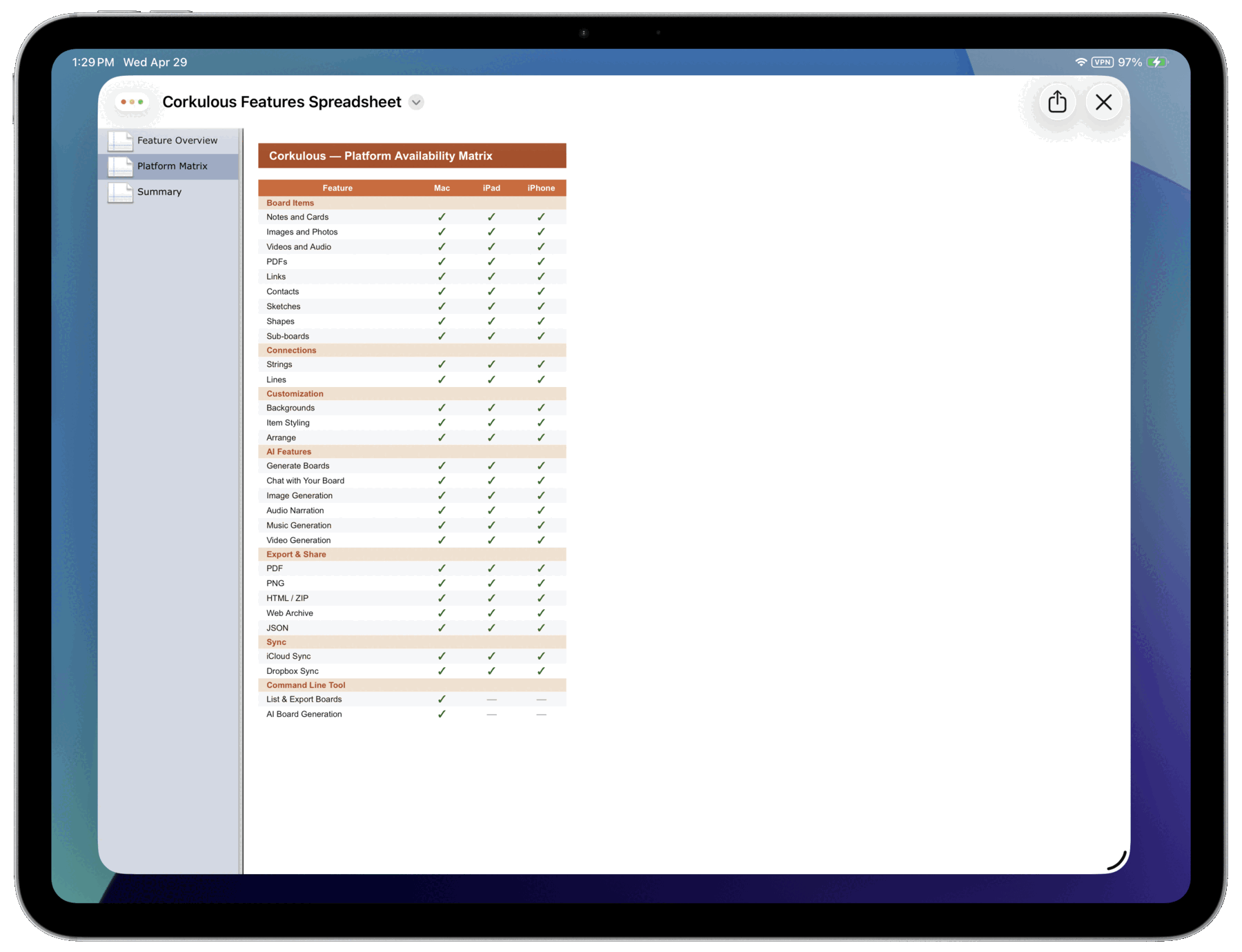
Double-tap a file item to open it in Quick Look. Quick Look lets you preview supported documents, spreadsheets, presentations, PDFs, and other files without leaving your board.
Tips
- Create Similar Items: Press
Shift-Command-Nto quickly create a similar item. - Connect Items: On iPad/Mac, enable connector mode (the link button in the overlay controls), select an item, then drag from the arrow handles that appear. Or select two items and tap the pin button in the toolbar. See Organize items with lines for details.
- Drag and Drop or Paste: Add files by dragging and dropping or pasting them. Learn about drag and drop on iPadOS from Apple Support.
- Automation: Add files to boards automatically with Shortcuts actions.
Next > Organize items with strings
