
Managing boards
Rename, move, archive, delete, lock, and share your boards. Manage one board or many at once.
Everything you need to organize your boards lives on the home screen. You can act on a single board from its menu, or select several boards and apply an action to all of them at once.
- Single board: Touch and hold a board (or right-click on Mac) to reveal its menu of options.
- Multiple boards: Tap the pencil in the navigation bar to select boards for batch operations.

Menu Options
- Open in New Window: Open the board in a separate window.
- Rename: Change the board’s name.
- Move: Move the board to a different folder.
- Archive: Remove the board from the main view. Find archived boards using the filter at the top.
- Copy: Copy the board to paste elsewhere.
- Lock: Require a passcode or biometrics to open the board. Set up a passcode in Settings first.
- Delete: Remove the board. This can be undone.
- Share: Export or share the board — see export options.
- Save as Template: Save the board as a reusable template — see creating boards.
- Copy URL: Get a deep link URL for Shortcuts automation.
Batch Operations
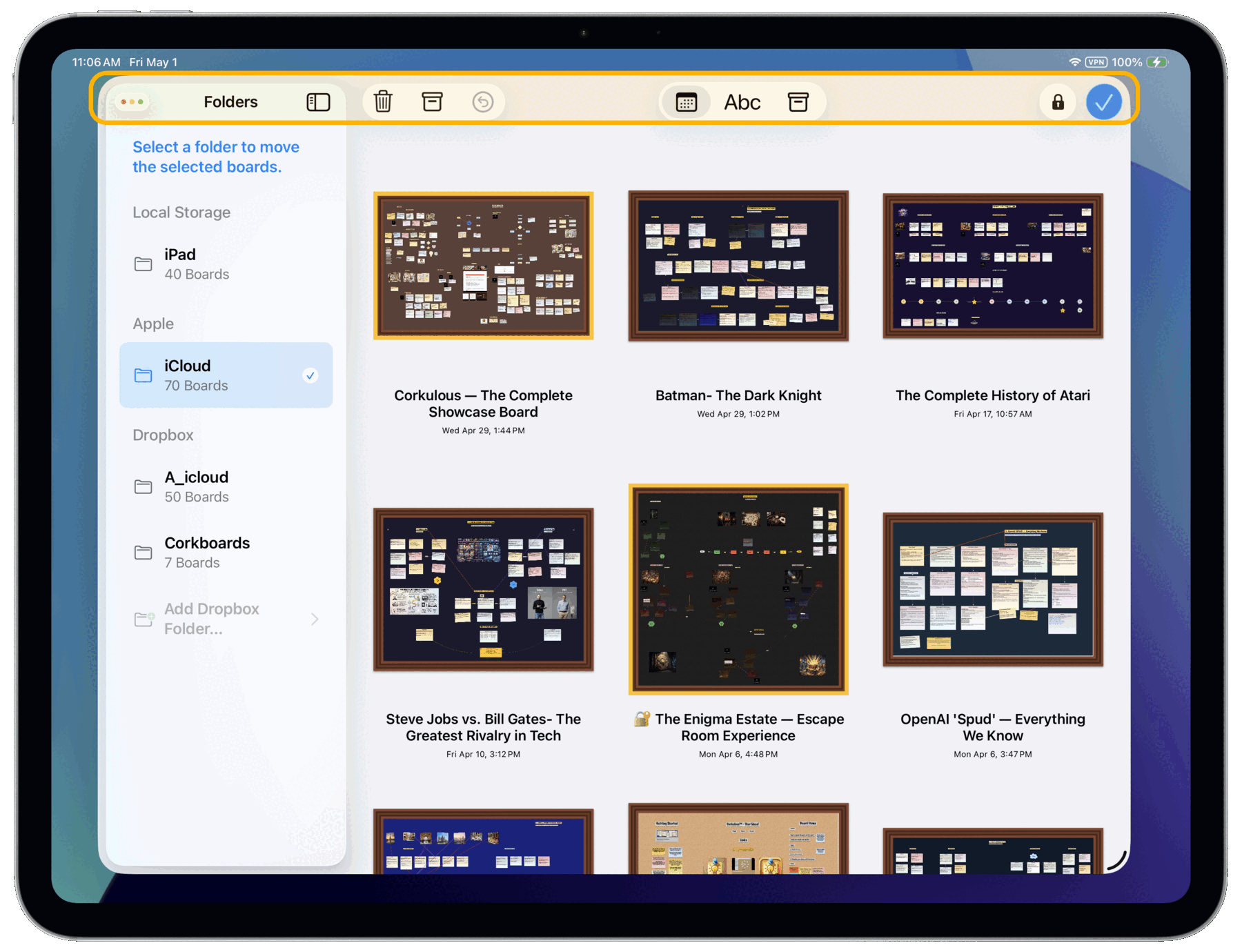
To manage multiple boards at once:
- Tap the pencil button in the navigation bar.
- Tap each board you want to select. Selected boards highlight in yellow.
- Use the toolbar buttons to apply actions to all selected boards.
- Tap Done when finished.
The batch toolbar offers these actions:
- Trash: Delete all selected boards. This can be undone.
- Archive: Archive all selected boards.
- Move: Move all selected boards to a new folder.
- Lock: Lock all selected boards.
- Undo: Reverse the last operation.
