
Add contacts
Add and edit items to a board /Add contactsAdd contact cards from your address book or create new contacts directly.
Add contact cards to your board from your device’s address book, or create new contacts directly. Perfect for org charts, team rosters, and project stakeholder maps.
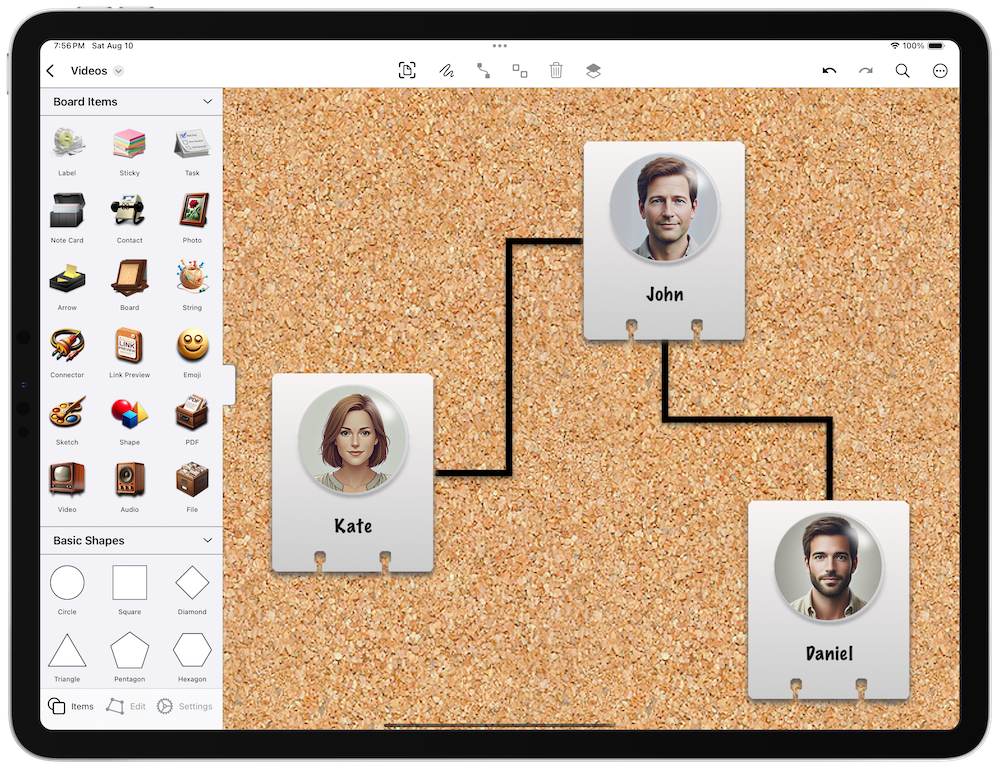
Add a Contact
On iPadOS or macOS, open the shelf on the left side of the screen. On iPhone, the shelf slides up from the bottom. Then:
- Add a Contact Item: Tap the contact item in the shelf to add it to the board.
- Choose a Contact: A dialog appears. Select Existing Contact to pick from your device’s contacts, or New Contact to create one. You can also select multiple contacts.
Selecting Multiple Contacts
You can add several contacts at once:
- Mac: Hold
Commandand click to select multiple contacts. - iPad/iPhone: Tap each contact you want to add.
Tips
- Show Contact Details: Double-tap a contact on the canvas to show its details.
- Create Similar Items: Press
Shift-Command-Nto quickly create a similar item. - Connect Items: On iPad/Mac, enable connector mode (the link button in the overlay controls), select an item, then drag from the arrow handles that appear. Or select two items and tap the pin button in the toolbar. See Organize items with lines for details.
- Drag and Drop or Paste: Add contacts by dragging and dropping or pasting contact cards. Learn about drag and drop on iPadOS from Apple Support.
- Automation: Add contacts to boards automatically with Shortcuts actions.
Next > Add photos
