
Add other boards
Add and edit items to a board /Add other boardsNest boards within boards to organize complex projects into manageable sections.
Nest boards within boards to create organized hierarchies. Instead of one massive canvas, break complex projects into focused sub-boards you can open and close as needed.
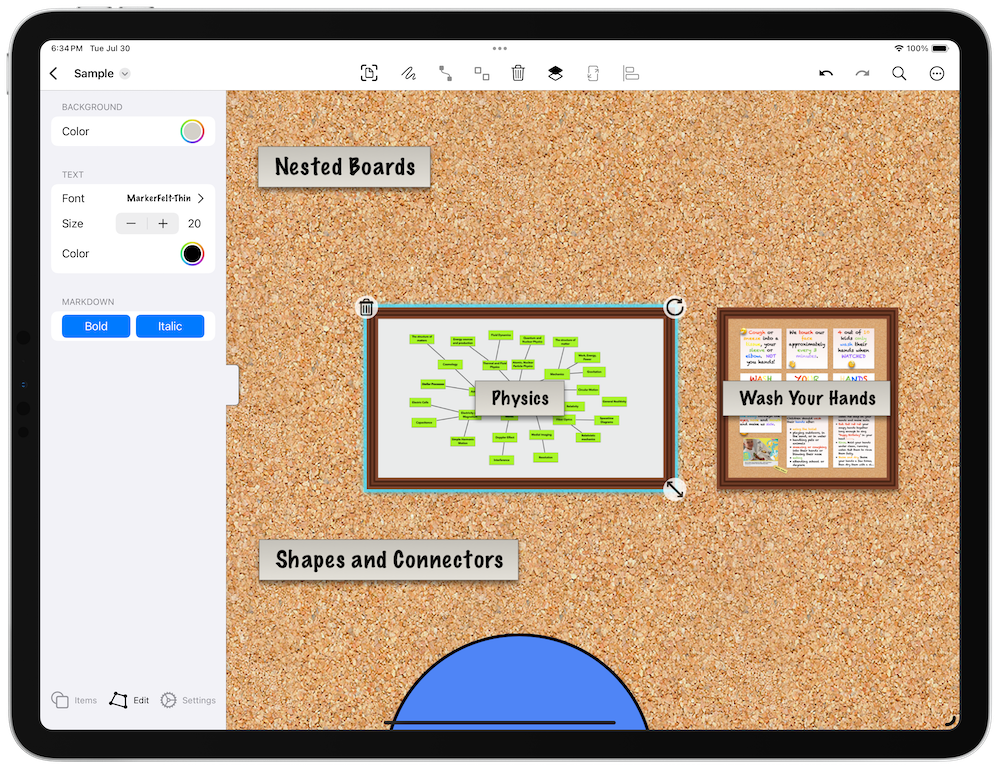
Add a Sub-board
On iPadOS or macOS, open the shelf on the left side of the screen. On iPhone, the shelf slides up from the bottom. Then:
- Add a Board Item: Tap the board item in the shelf to add it to the board.
- Create the Sub-board: The board creation screen appears. Choose the type of board you want to add.
- Open the Sub-board: Double-tap the board to open it. Use the back arrow to return to the parent board.
Tips
- Create Similar Items: Press
Shift-Command-Nto quickly create a similar item. - Connect Items: On iPad/Mac, enable connector mode (the link button in the overlay controls), select an item, then drag from the arrow handles that appear. Or select two items and tap the pin button in the toolbar. See Organize items with lines for details.
- Drag and Drop or Paste: Drag and drop boards onto any canvas. From the home screen, drag a board and hover over another board until it opens, then drop it onto the canvas. Exported boards can also be dragged in. You can also copy and paste boards — see managing boards for the copy menu. Learn about drag and drop on iPadOS from Apple Support.
- Automation: Add nested boards to boards automatically with Shortcuts actions.
Next > Add link previews
