
Now available: Corkulous 9.0 is on the App Store for iPhone, iPad, and Mac.
Corkulous 9.0 has enough new features to deserve more than one tour. This first post focuses on the board itself: ways to get started, more room for your ideas, and better ways to style and share your work. The next two posts cover AI and Mac workflows.
Find a Starting Point in the Board Library
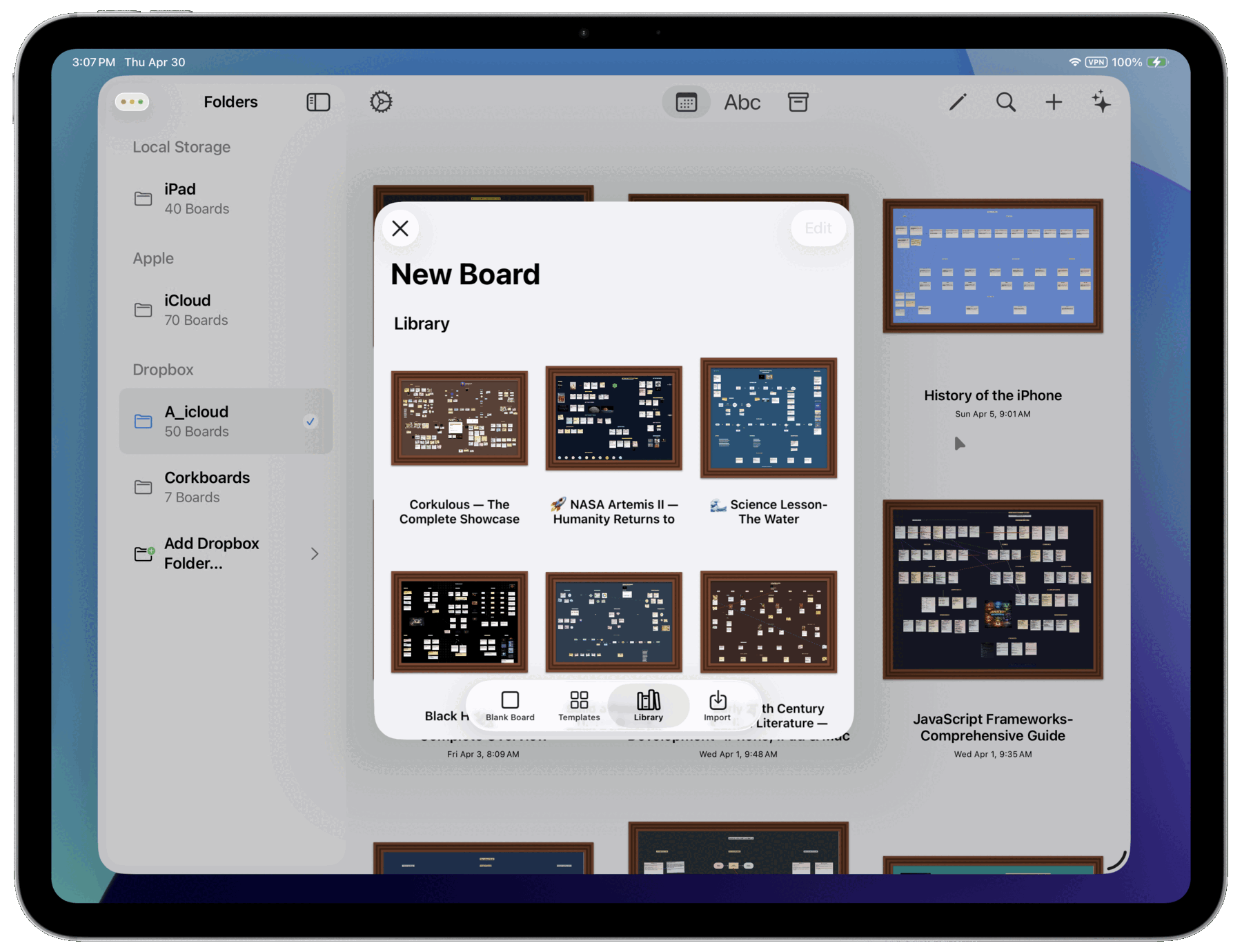
A blank canvas is useful, but sometimes an example is a better place to begin. The Library tab in the board creation screen includes bundled boards across science, history, creative writing, planning, and technical topics.
Open an example, explore how it is organized, then duplicate and adapt it. You can also start with a blank board, reuse one of your saved templates, or generate a board with AI.
Give Your Ideas More Room
Boards can now grow up to 12,000 × 12,000. That gives larger projects more space for research, nested boards, diagrams, and reference material.
Fit to Content helps resize the board around its items, while the size controls let you adjust the canvas yourself. Start with the space you need and expand as the project grows.
Put Structured Information in Markdown Tables
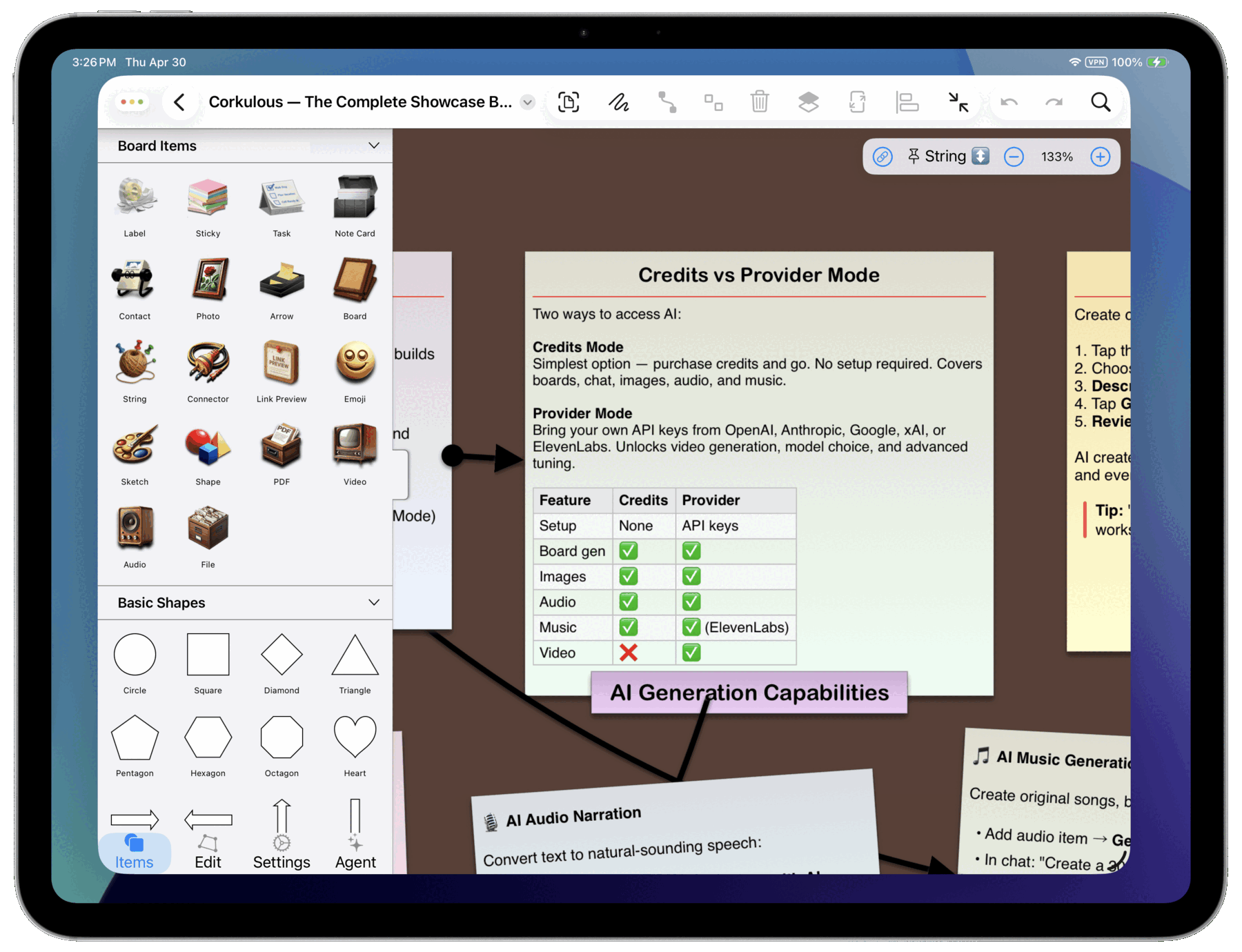
A comparison, a project checklist, or a small set of results can be easier to understand in a table. Corkulous renders Markdown tables inside supported text items, and the Agent can use tables in its responses.
Combine tables with headings, lists, links, and other Markdown formatting to give a note more structure without splitting everything into separate cards.
Choose a Frame That Fits the Board
The Frame section in board settings offers Classic, Walnut, Oak, Gallery Black, Gallery White, and Gold. The gallery styles include an inner mat for a framed-print look.
Your chosen frame appears on the open board, its home-screen thumbnail, and nested boards. Use different styles to give a collection of projects distinct identities.
Connect Ideas with Strings or Lines
Strings have a more lifelike appearance, with textured rope, drape, pins, and spool details. They suit loose associations: a mood board, a research wall, or a map of related ideas.
For a process diagram or a more formal relationship, use connector lines and arrows. You can mix both styles on a board when they communicate different kinds of connections.
Organize with strings or work with lines and arrows.
Share a Board Beyond Corkulous
HTML/ZIP exports provide an interactive view for someone who does not have Corkulous. The viewer includes zoom and pan controls, with supported media packaged alongside the HTML and sub-boards available within the view.

Web Archive offers a single-file option for Safari workflows on iPhone and iPad, and from the Mac CLI. PDF and PNG are useful for presentations and print, while native boards and JSON serve different editing and automation needs. The app also exports Mermaid flowcharts, and the Mac CLI adds Markdown.
Included local media can be viewed offline; external links and remotely referenced content may still need a connection. Use a native-board archive for an editable copy with its media. JSON can reference external files and is not a complete media backup on its own.
Corkulous 9.0 supports iOS/iPadOS 16 or later and macOS 13 or later. We will update the availability notice when the public release is ready.
